
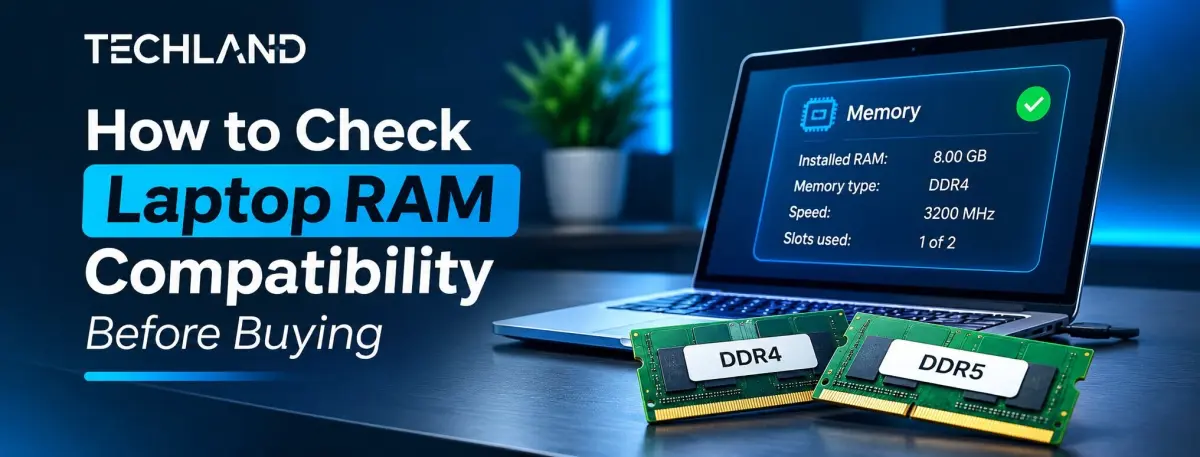
How to Check Laptop RAM Compatibility Before Buying
Choosing the right RAM for your laptop is important if you want to upgrade its memory without facing installation or compatibility problems. However, buying RAM is not as simple as choosing an 8GB or 16GB module. Every laptop has specific memory requirements, including RAM generation, form factor, supported capacity, speed, and available memory slots.
Before purchasing a new module, you should check whether your laptop supports a RAM upgrade and which memory specifications are compatible with your device. In this guide, we will explain how to check laptop RAM compatibility before buying, what specifications to look for, and how to avoid common mistakes when upgrading your laptop memory.
1. Check Your Laptop's Exact Model Number
The first step is identifying your laptop's exact model number. Different versions of the same laptop series may support different RAM configurations.
For example, two laptops from the same HP, Dell, Lenovo, or ASUS series might have different memory capacities, RAM generations, or upgrade options.
You can find your laptop model by following these steps:
-
Press
Windows + Ron your keyboard. -
Type
msinfo32and press Enter. -
Find the System Model option.
-
Note down the complete model information.
-
Visit your laptop manufacturer's official support website.
Once you identify the exact model, check its official specifications and service manual to find the supported RAM type and maximum memory capacity.
2. Check the Current RAM Configuration
Before buying additional memory, find out how much RAM your laptop currently has and whether any upgrade slots are available.
Windows provides a simple way to check this information.
Follow these steps:
-
Press
Ctrl + Shift + Escto open Task Manager. -
Select the Performance tab.
-
Click on Memory.
-
Check the installed RAM capacity and memory speed.
-
Look for the Slots used information, if available.
This information gives you an initial idea of your laptop's current memory configuration. However, Task Manager may not accurately identify soldered memory or the actual physical upgrade options. Always confirm these details through the manufacturer's documentation.
3. Understand DDR4 and DDR5 RAM Compatibility
RAM generation is one of the most important factors when checking laptop memory compatibility.
DDR4 and DDR5 are different memory standards. They have different physical and electrical specifications, so they cannot be used interchangeably.
Here is a quick comparison:
| Feature | DDR4 RAM | DDR5 RAM |
|---|---|---|
| Memory Generation | DDR4 | DDR5 |
| Standard Laptop Form Factor | SO-DIMM | SO-DIMM |
| Nominal Voltage | 1.2V | 1.1V |
| Compatibility | DDR4-supported laptops | DDR5-supported laptops |
| Interchangeable | No | No |
Before purchasing a module, check which generation your laptop supports. A DDR5 module will not work in a DDR4-only laptop, even if both modules have the same memory capacity.
You should also check the supported memory speed in your laptop's official specifications.
4. Check Whether Your Laptop Supports RAM Upgrades
Not every laptop allows users to upgrade its RAM. Some models come with removable memory modules, while others have RAM permanently soldered onto the motherboard.
There are generally three common configurations:
Removable RAM
These laptops have dedicated memory slots where compatible RAM modules can be installed or replaced.
Soldered RAM
In these laptops, memory chips are attached directly to the motherboard. Standard RAM upgrades are generally not possible.
Hybrid RAM Configuration
Some laptops combine soldered memory with one or more removable RAM slots. In these models, you may be able to upgrade the removable portion while keeping the existing onboard memory.
Check your laptop's official specifications or service manual to identify which configuration it uses before purchasing a new module.
5. Check the Maximum RAM Capacity
Every laptop has a supported memory limit. Installing a module with a higher capacity than your laptop supports may result in an unsuccessful upgrade or an unsupported configuration.
For example, if your laptop supports a maximum of 16GB RAM, you should not assume that installing a 32GB module will work.
Before buying, check these specifications:
-
Maximum total RAM supported by your laptop.
-
Maximum capacity supported per memory slot.
-
Number of available RAM slots.
-
Existing installed memory capacity.
-
Supported memory module configurations.
Always follow the manufacturer's supported memory configuration for your exact laptop model.
6. Understand Laptop RAM Form Factors
RAM modules come in different physical sizes and designs. Laptop computers generally use SO-DIMM memory modules, while desktop computers commonly use full-size DIMM modules.
Although both types perform similar functions, their physical dimensions are different.
Before purchasing, make sure you select the correct module type for your laptop.
Also, some modern laptops use soldered LPDDR memory instead of removable SO-DIMM modules. Therefore, check your laptop's specifications rather than assuming every laptop uses removable memory.
7. Check RAM Speed and Voltage Requirements
RAM speed and voltage are also important when choosing a compatible memory module.
For example, your laptop may support DDR4 memory at a particular speed. Installing a faster-rated module does not guarantee that your laptop will operate at that advertised speed.
The system may run compatible memory at a lower supported speed, depending on its processor, motherboard, BIOS, and memory configuration.
Before purchasing, verify:
-
Supported RAM speed.
-
Required memory voltage.
-
DDR generation.
-
Module capacity.
-
Manufacturer-supported configuration.
Choosing a module based on verified specifications can help prevent unnecessary compatibility problems.
8. Common Mistakes to Avoid When Buying Laptop RAM
Many users purchase laptop RAM based only on memory capacity. This can lead to compatibility issues and wasted money.
Here are some common mistakes to avoid:
-
Buying DDR5 RAM for a laptop that only supports DDR4.
-
Choosing desktop DIMM memory instead of laptop SO-DIMM memory.
-
Ignoring the maximum supported RAM capacity.
-
Assuming every laptop has an available upgrade slot.
-
Overlooking soldered memory configurations.
-
Purchasing RAM without checking supported speed and voltage.
-
Ignoring the manufacturer's service documentation.
Taking a few minutes to verify these specifications can make your laptop memory upgrade much easier.
Choose the Right RAM for Your Laptop
Before buying laptop RAM, take a little time to check your device's specifications. The right memory module depends on your laptop model, supported DDR generation, RAM capacity, speed and available slots. A little research beforehand can save you from buying a module that does not work with your laptop. If you are looking for compatible memory options, you can explore the Laptop RAM at Techland BD. Check your laptop's specifications before selecting a RAM module so you can choose the right option for your upgrade.
Discussion
0Leave a Comment
No comments yet
Be the first to share your thoughts
