
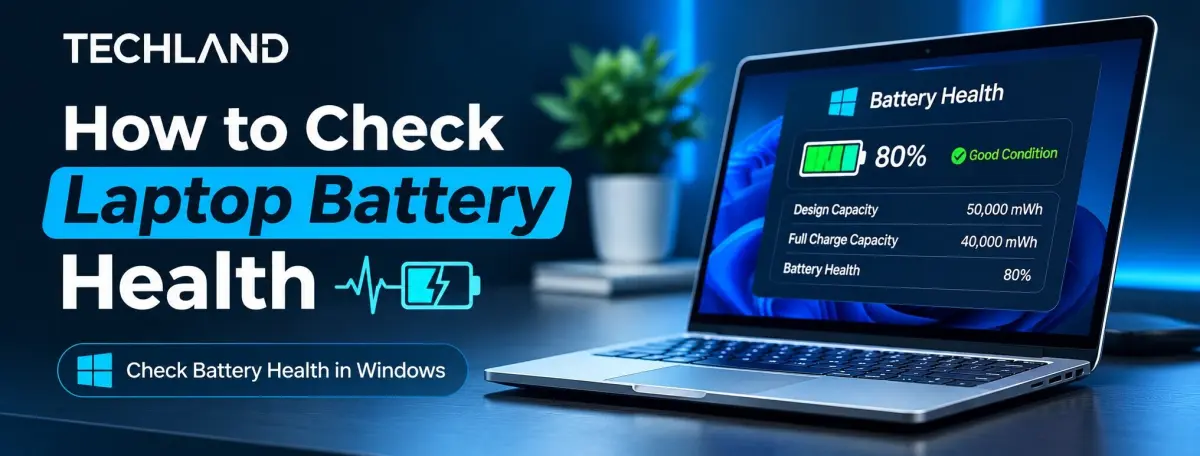
How to Check Laptop Battery Health
A laptop battery gradually loses its ability to hold a charge as it gets older. You may notice that your laptop no longer lasts as long as it did when you first bought it. Sometimes, the battery percentage drops quickly, the laptop shuts down unexpectedly, or you need to keep the charger connected throughout the day.
These problems can be related to battery wear, although software settings and background applications can also affect battery life. Checking your laptop battery health helps you understand its current condition and decide whether it needs attention or replacement.
In this guide, you will learn how to check laptop battery health in Windows, understand battery capacity, and identify signs that your battery may need replacing.
1. Generate a Battery Health Report in Windows
Windows has a built-in tool that generates a detailed battery report. It shows information about your laptop battery, including its original capacity, current charging capacity, and usage history.
You do not need to install any additional software to generate this report.
Follow these steps:
-
Open the Start menu and search for Command Prompt.
-
Right-click Command Prompt and select Run as administrator.
-
Type the following command:
powercfg /batteryreport
-
Press Enter to generate the report.
-
Windows will display the location where the report has been saved.
-
Open File Explorer and find the generated HTML file.
-
Open the file in your browser to view the battery information.
Once the report opens, look for the Installed Batteries section. This is where you can find the most important information about your battery's condition.
2. Understand Design Capacity and Full Charge Capacity
Two values in the battery report are particularly useful when checking laptop battery health: Design Capacity and Full Charge Capacity.
Design Capacity refers to the amount of energy the battery was designed to hold when it was new. Full Charge Capacity shows how much energy the battery can currently hold when fully charged.
As a battery ages, its full charge capacity generally decreases.
For example, if your laptop originally had a battery capacity of 50,000 mWh but can now hold only 40,000 mWh, its estimated remaining capacity is 80%.
You can calculate battery health using this formula:
Battery Health = (Full Charge Capacity ÷ Design Capacity) × 100
Here is an example:
| Battery information | Capacity |
|---|---|
| Design Capacity | 50,000 mWh |
| Full Charge Capacity | 40,000 mWh |
| Estimated Battery Health | 80% |
This calculation gives you a useful estimate of battery wear. It is not a complete diagnostic result, so consider actual backup time and the manufacturer's battery guidance as well.
3. Check Laptop Battery Usage in Windows Settings
If you want to understand why your laptop battery drains quickly, Windows Settings can help you identify applications that consume more power.
On Windows 11, open Settings, select System, and then choose Power & battery.
Look for the Battery usage section. It provides information about battery consumption over a selected period and helps identify applications that use significant power.
For example, video editing software, games, web browsers with multiple open tabs, and other demanding applications can consume more battery power than basic tasks.
If your battery health is still reasonable but the backup time has decreased, checking application usage is a good place to start.
4. Check Battery Health Using Your Laptop Manufacturer's Software
Some laptop manufacturers provide their own diagnostic applications for checking battery condition. These tools can offer additional information that may not appear in the standard Windows battery report.
For example, Dell users can check battery information through Dell SupportAssist, while some Lenovo laptops provide battery information through Lenovo Vantage. ASUS and HP also offer manufacturer-specific support and diagnostic tools for supported models.
Depending on your laptop model, these applications may show battery condition, charging status, battery protection settings, or recommendations for replacement.
The available features can vary between models, so use the official software designed for your laptop.
5. Signs That Your Laptop Battery Health Is Getting Worse
Battery health numbers are useful, but your everyday experience also matters. A battery may show reduced capacity while still providing enough backup for regular work. However, certain changes can indicate that the battery is becoming less reliable.
One common sign is noticeably shorter backup time. If your laptop previously lasted several hours but now needs charging much more frequently under similar usage conditions, the battery may have lost capacity.
Another sign is an unexpected shutdown. If your laptop turns off even when Windows shows that some battery charge remains, the battery or its power management system may need checking.
You may also notice unusually slow charging, sudden changes in the battery percentage, or a battery that does not hold its charge for long after unplugging the charger.
Physical swelling is a more serious warning. If the laptop's touchpad, keyboard, or bottom cover starts lifting because of an expanded battery, stop using the laptop and disconnect the charger if it is safe to do so. Do not press, puncture, or attempt to remove a swollen battery yourself. Contact a qualified technician.
6. What Affects Laptop Battery Health?
Laptop batteries naturally lose capacity through regular use. However, certain usage conditions can contribute to faster battery degradation.
Heat is one of the main factors. Using a laptop on a bed, pillow, or other surface that blocks ventilation can increase internal temperatures. Running demanding applications for extended periods can also generate additional heat.
Charging habits and storage conditions matter too. Keeping a battery at a very high charge level for extended periods, especially in warm conditions, can accelerate capacity loss. For long-term storage, manufacturers generally recommend keeping the battery in a cool, dry environment with a moderate charge level.
Modern laptops often include battery protection or charging limit features. If your device supports these settings, you can use them to help manage charging during regular desk use.
7. When Should You Replace Your Laptop Battery?
There is no single battery health percentage that means every laptop needs a replacement. The decision depends on the remaining capacity, actual backup time, battery condition, and manufacturer's recommendations.
If your battery still provides enough backup for your daily activities, immediate replacement may not be necessary. However, if the backup time has become inconvenient, the laptop shuts down unexpectedly, or the manufacturer recommends replacement, it may be time to consider a new battery.
Before buying a replacement, check your laptop's exact model number and the battery's part number. Also compare the voltage, capacity, connector, and physical compatibility. Choosing a battery simply because it belongs to the same laptop brand is not enough.
If you need a replacement, you can explore the Laptop Battery at Techland BD to find options for different laptop models and brands.
Checking battery health from time to time helps you understand how your laptop performs and when it may need maintenance. With proper care and the right replacement when necessary, you can keep your laptop ready for everyday work, study, and entertainment.
Discussion
0Leave a Comment
No comments yet
Be the first to share your thoughts
